The Google Pixel line is rightly celebrated for its top-tier camera, a feature that dominates marketing and discussion. While the phone’s photographic skill is excellent, this focus often overshadows the suite of smart, deeper software features built into the device. These tools aren't aimed at perfecting a landscape shot; they solve irritating, everyday frustrations that quietly consume your attention and time.
Many Pixel owners are overlooking the phone’s ambient intelligence simply because they haven't explored past the surface settings. It’s time to start leveraging the quiet genius Google has engineered into this device, turning routine friction into seamless automation.
5 Secret Google Pixel Features That Will Change How You Use Your Phone
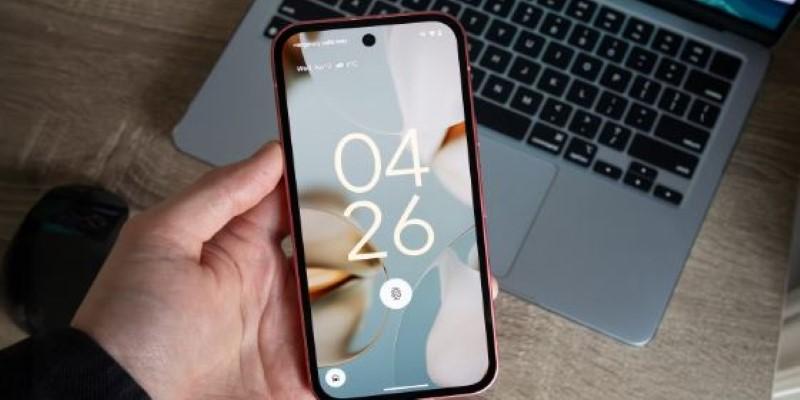
The Call Assistant: Hold for Me
Calling banks, airlines, or utility companies inevitably leads to the frustrating experience of being immediately placed on hold. This forces you to stay tethered to your phone, listening to repetitive hold music, just waiting for a customer service representative to appear.
Hold for Me eliminates this drain on your focus by letting the Google Assistant take over. When a call enters the hold queue, a "Hold for me" button appears. Tap it, and the Assistant monitors the line. You are free to mute your phone, walk away, or multitask. The phone will wait, and the moment a real person speaks, the Pixel provides an audible alert, a vibration, and an on-screen prompt: "Someone’s waiting to talk to you." It offers a huge boost to efficiency.
A key constraint is that this feature works best with established business numbers that use structured hold music or recorded messages, allowing the AI to reliably detect a human handover.
Magic Eraser for the Mundane
The Magic Eraser is famous for deleting photobombing tourists. However, its most frequent and most valuable use case is for subtle, routine photo clean-up that doesn't require complex generative AI techniques.
The tool’s real strength lies in removing small, distracting elements that compromise the visual quality of a photo. Consider taking pictures for an online listing—say, a used monitor or a coffee table. There might be a stray charging cable or a faint smudge on the wall that makes the product look less appealing. Instead of moving to a desktop editor for a minor correction, you simply circle the distracting item in the Google Photos app.
The Magic Eraser flawlessly blends the background, making the imperfection vanish. While it struggles with erasing large objects from highly textured backgrounds, it is perfectly suited for removing things like power cords, dust spots, or minor clutter, making quick presentation cleanup simple and fast.
Quick Tap to Start Actions
Sometimes, the quickest way to execute an action is through a simple, physical gesture. Quick Tap is a powerful, yet overlooked, setting that allows you to double-tap the back of your Pixel to trigger a specific command. It’s a pure win for workflow speed.
Instead of needing two hands to swipe down for the notification shade or fumbling to open a specific app, you can simply tap-tap the back of the device. A perfect scenario is activating the flashlight. If you are standing in the dark with full hands, attempting to unlock the phone and find the Quick Settings tile is cumbersome.
With Quick Tap configured, two taps on the phone’s chassis instantly toggles the flashlight on; two more turns it off. This is instant, tactile control that works even from the lock screen. The main limitation is the occasional unintended trigger if the phone is handled aggressively, though settings allow for a "stronger tap" requirement to reduce false positives.
Call Screen’s Purpose-Driven Screening
Call Screen is widely known for filtering generic spam. However, its sophisticated capability is manual screening for incoming calls that are important but arrive at inconvenient times. When an unfamiliar number calls, tapping "Screen call" prompts Google Assistant to ask the caller their identity and reason for calling, with the transcript appearing instantly on your screen.
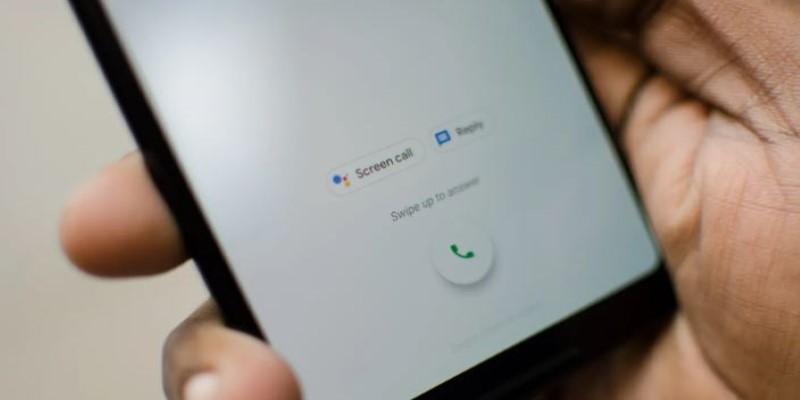
This is indispensable when you are busy—in a meeting or a quiet zone—but are expecting a crucial call, such as a delivery driver or a repair technician. You can't speak, but you can't ignore it. Screening the call allows you to read the transcript, confirming context like, "This is the delivery service, I'm outside."
You can then use quick, pre-written text prompts like "I can’t talk right now, please leave the package," which the Assistant reads aloud to the caller. This provides silent, seamless communication control. The feature's primary constraint is its occasional difficulty with heavy accents or very poor connection quality, which can result in inaccurate transcripts.
Rules for Location and Wi-Fi Automation
The "Rules" feature, located in the System settings, provides an automated way to change the phone’s sound and notification profile based on your physical location or the Wi-Fi network you connect to. It acts as a simple automation layer, eliminating the need to manually silence your device repeatedly.
Consider a person who routinely visits a library, classroom, and office. A rule can be set so that whenever the phone connects to the "Office_MeetingRoom" Wi-Fi network, the phone automatically switches to Vibrate mode and activates Do Not Disturb. The moment the connection is dropped, the settings revert to normal.
You never face the risk of a loud notification interrupting a quiet setting, nor do you have to remember to restore the sound afterwards. It is a powerful, set-it-and-forget-it convenience. A minor limitation is that location-based triggers may lack pinpoint accuracy, so connecting the rule to a specific Wi-Fi network offers superior reliability.
Conclusion
The best technology features are those that integrate so smoothly they disappear, quietly solving minor headaches. The Pixel’s most underrated tools are not just technical achievements; they are thoughtful solutions to the most common annoyances of daily smartphone use. Whether it’s having the AI handle a wait on hold or using an invisible gesture for immediate function access, these features are about returning control and time to the user. They clearly demonstrate that intelligent design focuses on eliminating manual effort, making the Pixel an intuitive and less burdensome device.