GNOME is a complete desktop environment often encountered early by Linux users on distributions like Ubuntu or Fedora. It possesses a distinct philosophy, prioritizing simplicity and a focused workflow over complex menus and tweakable settings. This departure from Windows or macOS metaphors can initially confuse newcomers, but understanding the core design reveals an efficient system.
The GNOME experience relies heavily on activities, workspaces, and a clean desktop. The entire workflow funnels through the "Activities Overview," moving users away from traditional Start Menus and manual window tiling. The developers intentionally hid complexity, creating a desktop you learn to use rather than one you constantly configure.
Navigating the Activities Overview and Workspaces
The single most important feature in GNOME is the Activities Overview. Think of it as the central control hub, replacing the traditional desktop. You activate it by clicking "Activities" in the top-left corner, pressing the Super key (usually the Windows key), or moving your mouse into the top-left hot corner. When it pops up, everything on your screen instantly shrinks back. You see a view of all currently open windows, a Dash (dock) on the left for quick application launching, and thumbnails of your virtual Workspaces along the right edge.
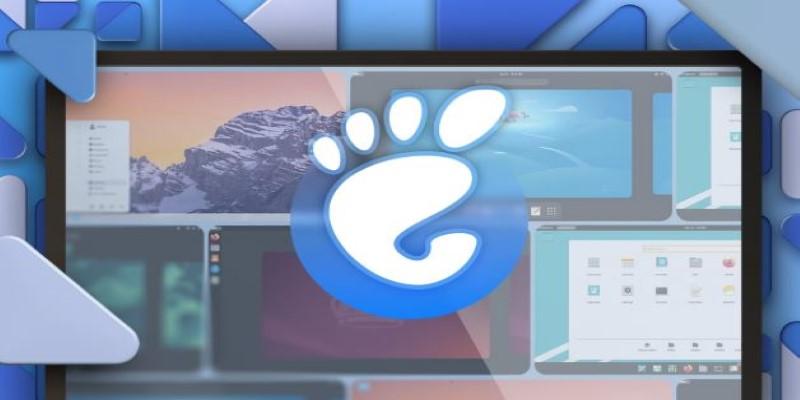
The beauty of this setup is how it solves the problem of lost windows. Instead of minimizing a dozen windows and then scrambling to find the right icon on the taskbar, the Overview lets you see everything at a glance. For instance, you could drag your code editor and documentation onto one workspace, and your communication apps onto another. This cleanly divides your focus.
Switching between these contexts is a quick press of the Super key, followed by a single mouse click on the appropriate workspace thumbnail, or using the keyboard shortcuts Ctrl+Alt+Arrow Up/Down. The design nudges you into organizing your tasks spatially, keeping your work segregated.
The Power of Search and Application Management
GNOME’s approach to launching applications is heavily weighted towards search. As soon as you open the Activities Overview, you can immediately start typing the name of an application, setting, or file, even without clicking into the search box first. This is demonstrably faster than clicking through nested menus once you internalize the habit.
For example, if you need to adjust your display’s night light settings and then quickly launch the Terminal, you hit the Super key, type "Settings," press Enter, then type "Night Light" within the Settings app, make the adjustment, close the window, hit the Super key again, type "Terminal," and Enter. This flow bypasses numerous sub-menus and excessive mouse travel. While the search is excellent for applications and system settings, one notable constraint is that its file-indexing capabilities can sometimes lag behind dedicated desktop search utilities on other platforms, especially on network drives. For deep file searching, opening the file manager, Nautilus, directly is often necessary.
Customization Through Extensions and Appearance
For a desktop that champions simplicity, GNOME offers a surprising depth of customization, though it's largely channeled through GNOME Extensions. Unlike other desktops, where every element might have a nested configuration panel, GNOME's base offering is intentionally sparse. Extensions are small add-ons that modify the desktop shell's behavior and appearance.
The process often involves installing the GNOME Shell Integration browser extension and using the official extensions.gnome.org website. This is how users add functionality they miss. For example, if you want a traditional Windows-style list of running windows in the bottom panel, you would use an extension like "Dash to Panel." Another useful one is "Caffeine," which solves the real-world problem of the display automatically locking or going to sleep during presentations; a click prevents the screen from blanking. A critical limitation, however, is that extensions are often tied to specific versions of the GNOME Shell. When a major new version is released, extensions may temporarily stop working until their developers update them, requiring management via the GNOME Extensions App or GNOME Tweaks utility.
Settings, Notifications, and System Integration
The GNOME desktop environment features a streamlined Settings application, acting as a clean, centralized utility for system adjustments. It prioritizes common controls like network configuration, display resolution, and privacy settings, avoiding the clutter of older, sprawling control panels. The design emphasizes simplicity, minimizing the need for deep, technical diving.
The notification system is similarly streamlined. When an alert arrives (like a new email), a discreet banner appears briefly at the top of the screen before quickly disappearing. Instead of sticking around, a small badge or dot appears on the system calendar/notification menu in the center of the top bar. This intentional design prevents notification overload, ensuring the desktop isn't constantly held hostage by pop-ups. Users can always review the full history of alerts later by clicking the date and time.
GNOME also boasts tight integration with the system's underlying hardware and power management. It handles the automatic setup of most peripherals and exposes power profile settings (e.g., focused on battery life or performance) directly within the top-right system menu. This cohesive, modern platform approach is one of GNOME's strongest arguments, ensuring the system works well out of the box to maximize user productivity.
Conclusion
The GNOME desktop environment offers a modern, thoughtful alternative to traditional layouts. It requires users to shift from constant window manipulation toward utilizing the Activities Overview and Workspaces for task separation. The payoff is a highly focused and clean workspace. The system heavily encourages keyboard use, relies on search for application launching over deep menus, and manages complex customization through the version-dependent Extensions system. For beginners in the Linux world, understanding these core principles is key to unlocking the desktop's potential. It transforms the environment from a confusing maze of options into a minimalist, highly efficient digital workshop. Now that the basics are covered, efficiency will quickly become second nature simply by spending time using the GNOME desktop as intended.