Most people use smartphones without thinking twice about tapping a screen or reading small text. But for millions, those everyday actions can be tough. That’s why accessibility features have become one of the most thoughtful parts of modern phones. They’re not just add-ons—they’re tools that make smartphones usable for people with vision, hearing, mobility, or cognitive differences.
What’s even better? These features often come in handy for everyone. Whether it’s reading a screen in bright sunlight or using voice commands when your hands are full, accessibility settings can quietly improve the way you use your phone—without changing how it feels.
Top Smartphone Accessibility Features That Make Life Easier
Screen Readers and Voice Assistants
A screen reader is one of the most impactful accessibility tools. On iPhones, it’s known as VoiceOver; on Android, it’s called TalkBack. These tools read text and describe elements on the screen aloud, allowing users with low or no vision to navigate their phones through touch and spoken feedback.

Using simple gestures, like swiping or tapping, people can move through menus, access content, and get details about what’s happening on the screen. It helps users read emails, explore websites, use apps, or manage notifications with audio feedback.
Voice assistants like Siri and Google Assistant add a helpful layer by letting users operate their phones with voice commands. They can place calls, answer texts, or schedule reminders—all without needing to touch the screen.
Magnification and Display Adjustments
People with reduced vision or those who prefer larger visuals benefit from built-in magnification. Phones let users zoom in on any area of the screen, making reading or viewing much easier. This works throughout the system—whether browsing a web page, viewing photos, or reading messages.
Font size, boldness, and display scale can also be adjusted. These settings allow more control over how text and elements appear. For those with light sensitivity or contrast issues, features like dark mode and high-contrast themes offer a more comfortable experience.
Color filters are another thoughtful option. For people with color blindness, these settings make it easier to distinguish between similar colors, improving visual clarity across apps and media.
Hearing Accessibility Tools
Smartphones now offer built-in features for those who are deaf or hard of hearing. One key tool is live captioning, which turns audio from calls, videos, and apps into readable text in real time. It’s especially useful when following spoken content in noisy settings or when sound isn’t an option.
Phones can also connect directly to hearing aids via Bluetooth. This allows sound to stream from the phone to the hearing aid, improving clarity for calls, music, or media.
Sound recognition is another useful feature. It listens for important sounds—like alarms, doorbells, or crying—and alerts the user through vibration or visual signals. These alerts can be customized depending on which sounds are important in the user’s environment.
Voice Control and Hands-Free Use
Voice control features are designed for users who can’t interact with their phones using touch. Apple’s Voice Control and Android’s Voice Access let users operate every part of their phone using just their voice.
This includes opening apps, selecting items on the screen, scrolling, or typing using speech. It's useful not just for long-term accessibility needs, but also temporary ones, like when hands are occupied or injured.
Dictation is another tool that works well with voice control. Instead of typing, users can speak to create messages, documents, or notes. It’s fast and convenient, especially as speech recognition continues to improve in accuracy and speed.
Assistive Touch and Interaction Shortcuts
Smartphones can sometimes be physically hard to use. Small gestures or buttons aren’t ideal for everyone. AssistiveTouch on iOS and the Accessibility Menu on Android make interaction easier by offering on-screen buttons that can be tapped instead of pressing physical keys.
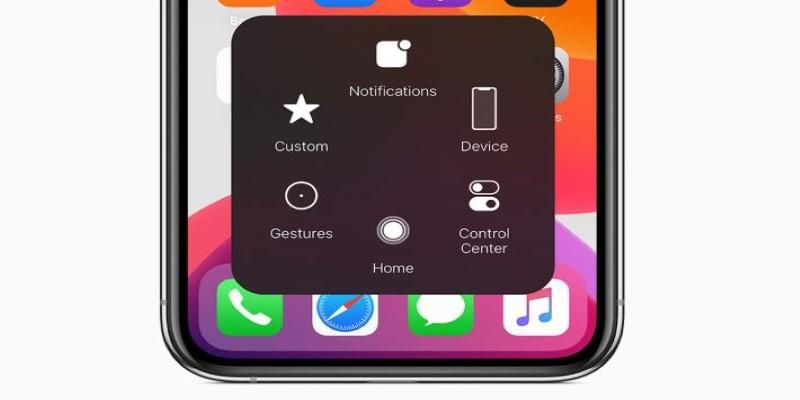
These overlays provide shortcuts to volume controls, lock screen, screen capture, and more. This helps users who have limited mobility or fine motor difficulties.
Switch control is another helpful option. It allows users to navigate the phone with external devices, head movements, or even eye tracking. While it takes some setup, it can offer full access with very minimal movement.
Gesture customization is also built into many phones. You can assign simpler motions to complex tasks or create shortcuts for repeated actions. These personalizations let users work with their phones in ways that suit their specific needs.
Accessibility in Third-Party Apps
More developers now build accessibility into their apps. Messaging apps support larger fonts and voice typing. E-book readers offer dyslexia-friendly fonts and screen reader compatibility. Video players include closed captions, and some add audio descriptions to help explain scenes and visuals.
Navigation apps now highlight step-free or accessible routes. In reading or writing apps, users can adjust line spacing, contrast, or typeface for easier viewing.
Guided access is another tool that limits the phone to one app or screen. It’s useful for those with attention difficulties or younger users who may find it easier to focus on a single task at a time.
Emergency and Safety Features
Accessibility extends into safety. Both iPhones and Android phones offer emergency SOS features. A quick button press can alert emergency contacts and share the phone’s location instantly.
Medical ID settings store critical health information—such as allergies, medications, and conditions—that first responders can access from the lock screen. This can be vital for users with medical conditions or communication challenges.
In some places, users can also text emergency services directly, which helps in situations where speaking isn’t possible or safe. These tools show how accessibility goes beyond ease of use—it can offer real protection and peace of mind.
Conclusion
Smartphone accessibility features make technology more inclusive without needing extra hardware or complex setups. Tools like screen readers, live captions, voice control, and visual adjustments support people with different needs—and they often improve usability for everyone. As these features become standard, they help shift the focus from one-size-fits-all design to more thoughtful, responsive technology. The most helpful part? These tools are already built into your device. Taking a few minutes to explore them can lead to a better, easier, and more personal way of using your phone every day.