Installing Ubuntu on a Chromebook feels simple at first glance, mostly because ChromeOS hides a lot of the usual maintenance work. The moment you step outside that bubble, the machine behaves more like a thin laptop with a locked boot process and a few surprising quirks.
Some people try it after hitting the limits of web apps. Others do it to revive an older model that struggles with modern ChromeOS updates. Whatever the motivation, the setup requires a bit of patience. It is doable for beginners, but expecting the same workflow as a regular PC can lead to frustration.
When a Chromebook Makes Sense for Linux
ChromeOS is fast partly because it relies on a minimal system. That simplicity becomes a wall when someone needs software that Chromebook developers never intended to support. A student might want a local compiler to work in a spot with unreliable Wi Fi. A writer might want an offline note system that does not sync through Google. A data hobbyist might want tools like Pandas or Jupyter without depending on the built in Linux container, which often stumbles with file permissions and local storage quirks.
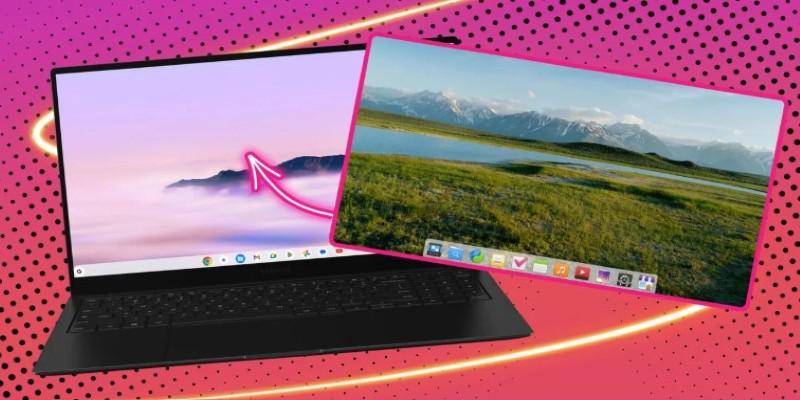
Chromebooks use Coreboot and a verified boot chain. This protects inexperienced users from corrupt firmware, but it also means the device expects ChromeOS every time it powers on. Linux must be introduced carefully. Some models exposed a physical developer switch in early years, while newer models use a keyboard shortcut and a menu buried behind a recovery prompt. If someone owns a school managed Chromebook, there is usually no path forward because the admin block prevents enabling developer mode.
Ubuntu itself runs well on lightweight hardware, though performance varies depending on the desktop environment. GNOME asks for more RAM, so older Chromebooks feel smoother with Xfce or MATE. High DPI screens pose another surprise because scaling does not always match ChromeOS defaults. A user familiar with crisp text might notice fuzzy icons until they adjust settings manually.
What You Should Know Before Attempting the Installation?
Developer mode changes how a Chromebook behaves. Boot time becomes slower because the system pauses to warn you that verification is off. Powerwashing happens automatically when you toggle the mode, so anything stored locally disappears. Even the Downloads folder gets wiped. Backing up Google Drive files is easy, but local Linux files from the ChromeOS container often confuse people. Those sit in a hidden directory named penguin and must be moved manually.
Security expectations shift after enabling developer mode. Verified boot no longer stops unsigned changes. Some users assume that Linux adds security by default, but what it really adds is responsibility. Updates, firewall decisions, and package sources fall on the user. A mistake like mixing PPAs or forcing a mismatched kernel update can break the system, then the only recovery path is reinstalling ChromeOS from a USB stick.
Battery life also changes on many models. ChromeOS manages power aggressively and parks background processes. Ubuntu works differently. If a Chromebook uses an Intel processor, power drain may only increase slightly. ARM based Chromebooks vary much more. Some of them require community kernels or patches to get basic things like sound or suspend working. Missing driver support turns a quiet, efficient laptop into something that warms up too easily during normal browsing.
One more point that surprises newcomers is storage. Many Chromebooks ship with 32 or 64 gigabytes of eMMC storage. Once Ubuntu and ChromeOS share the drive, that space fills quickly. A dual boot setup works, but it demands strict partitioning and discipline with downloads. Even advanced users sometimes end up starting over because they boxed themselves in with too little room for updates.
How to Install Ubuntu on a Chromebook?
There are two practical routes. The first uses Crouton, which creates a chroot environment inside ChromeOS. The second installs Ubuntu directly through the firmware. Each path solves a different problem.
Crouton appeals to people who like the speed and battery life of ChromeOS but want Linux tools side by side. Imagine a developer working on a Python project who wants to test scripts locally without switching systems. Crouton lets them pop into Ubuntu while keeping ChromeOS untouched. A drawback appears when GPU acceleration fails, usually after a ChromeOS update. A chroot does not get driver updates at the same pace, so graphical apps feel sluggish until the community patches things.
A full installation behaves closer to a traditional Linux laptop. The process usually starts with MrChromebox’s firmware utilities. A user boots into developer mode, opens a terminal with Ctrl Alt T, enters shell, then runs a firmware script that unlocks boot options. This part requires steady attention because selecting the wrong firmware can disable ChromeOS recovery shortcuts.
Once the firmware accepts external booting, the user flashes an Ubuntu installer to a USB stick, boots into it, and partitions the internal drive. The installer looks the same as on a standard PC, but trackpads on Chromebooks occasionally misbehave during setup, so an external mouse helps.
Dual booting through a tool like chrx used to be common. It still works on many Intel models. A person might keep ChromeOS for casual browsing, then switch to Ubuntu for code work. The catch is that chrx development slows during major ChromeOS transitions, so instructions for one model do not always map cleanly to another. Trusted tutorials often mention the exact hardware revision because two models sold under the same name can have different storage controllers.
Living With Ubuntu on a Chromebook
A Chromebook running Ubuntu can feel refreshing once everything is in place, though the experience depends on what you expect from the hardware. Light tools and simple workflows settle in easily, but features like gaming, advanced graphics, or specialty drivers still carry rough edges. Even so, Ubuntu often gives an older Chromebook a second life. ChromeOS updates eventually stop, and Linux fills that gap with current software and a wider range of uses. With the right expectations, the device becomes a practical little machine rather than a limited one.