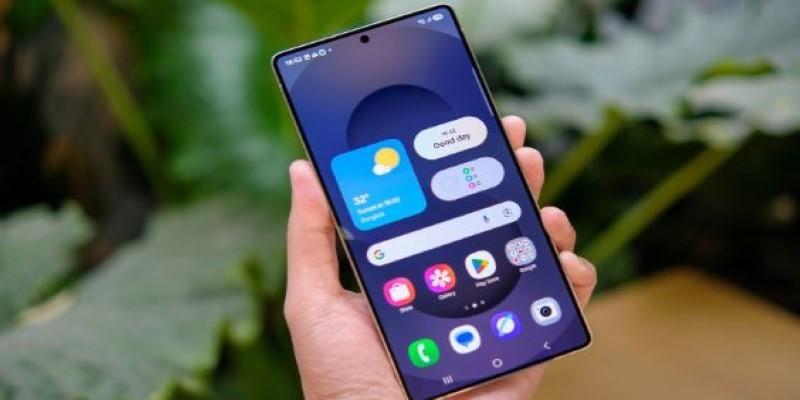
Samsung Galaxy phones are packed with features, some obvious, many tucked away. Out of the box, the experience works well enough, but with a few adjustments, it can feel more personal, more responsive, and less cluttered. Some of these settings are about smoothing out rough edges, others about preventing problems that build over time. The phone doesn't need to be reimagined, just nudged into better shape. These settings do exactly that.
8 Settings That Make Your Samsung Galaxy Phone Feel Smarter and Faster
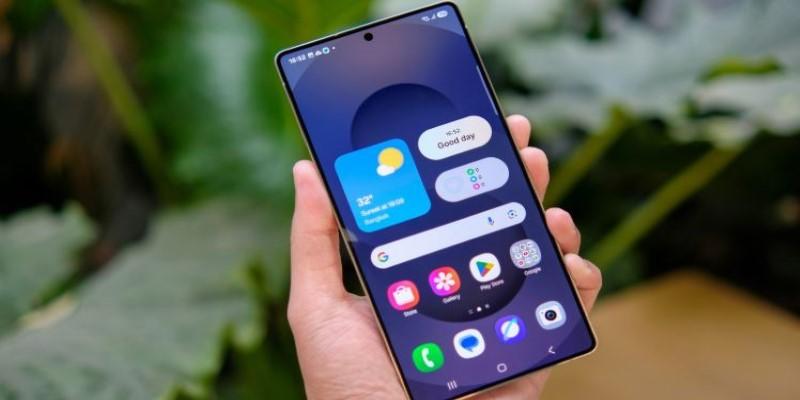
Reduce Animations for Quicker Screen Flow
Start by opening Settings, then head to “Accessibility,” followed by “Visibility enhancements.” There’s a toggle called “Remove animations.”
It doesn’t change the processor speed, but it does affect perception. Screen transitions become snappy. Menus don’t float into place—they appear instantly. The phone feels sharper. For someone juggling multiple apps or switching between messages and email all day, it adds up. Less lag between taps means less friction.
Still, it’s not for everyone. Some interfaces, especially in creative or editing apps, rely on movement to guide users. With animations off, context shifts can feel abrupt.
Protect Battery Health with Charging Limits
Within “Battery and device care,” go to “Battery,” tap “More battery settings,” and switch on “Protect battery.” This limits charging to 85%.
Most people don’t think about battery longevity until it becomes a problem. Lithium-ion batteries degrade faster when constantly pushed to 100%. This setting avoids that strain. It’s a quiet insurance policy for anyone holding onto their phone for more than two years.
If you’re often on the go without a charger, this limit might feel restrictive. In those cases, toggle it off temporarily. Otherwise, keep it on in daily use to reduce long-term wear.
Create Smart Modes and Routines
Samsung’s “Modes and Routines” feature, tucked under the same name in Settings, is surprisingly flexible. It lets the phone change its behavior automatically, based on conditions like time, place, or connected devices.
Say you want your phone muted, with blue light filter on and grayscale activated after 10 p.m. That can be one tap. Or better, let the phone do it when the clock hits. Heading into a work meeting? Link a Bluetooth trigger so your phone shifts to vibrate, dims the screen, and opens your notes app.
The setup flow takes patience, and not all apps respond perfectly. But once it’s dialed in, it reduces repetitive tasks you’d otherwise forget.
Disable Unused Apps Without Risk
Every Samsung phone arrives with pre-installed apps that may never be opened. While some can be uninstalled, many can’t. But they can still be disabled.
Press and hold the app icon, then tap “Disable.” It won’t show up in your app drawer or run in the background. It won’t update either.
This matters when storage fills up or when background processes slow things down. Apps like AR Zone, Samsung Free, or Samsung Kids might be helpful for some, but unnecessary for others. Disabling them won’t break system functions. It just clears space—visually and functionally.
Tighten App Permissions
Under Settings, go to “Privacy” and then “Permission manager.” This is where you’ll see what apps are accessing your location, camera, microphone, contacts, and more.
It’s easy to miss how much access apps quietly gain over time. Install a QR code scanner, and suddenly it’s tracking your location. A random game might still have camera permission from when it asked once at install.
Reviewing and revoking unused permissions reduces data leaks and unnecessary background usage. Some apps will request access again when needed. Most won’t notice. It’s a fast way to reduce noise, drain, and risk.
Tweak Samsung Keyboard for Better Typing
Samsung’s keyboard isn’t bad, but it’s not always tuned to personal habits. Open “General management,” then “Samsung Keyboard settings.” You’ll find options for layout, swipe typing, predictive text, and haptic feedback.
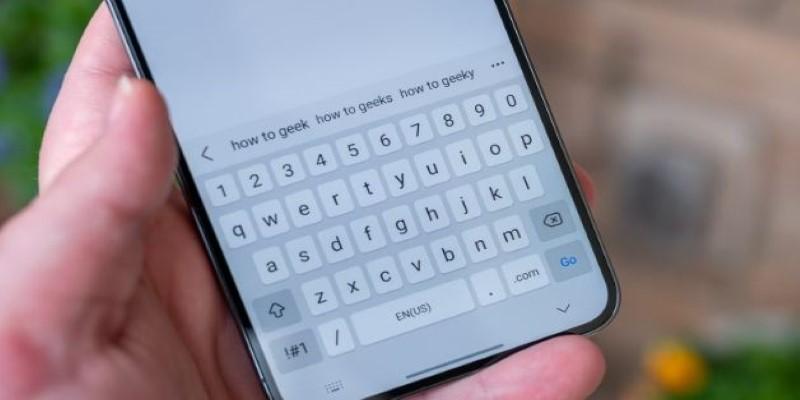
One adjustment worth trying is turning off keyboard vibrations. It’s subtle, but when typing fast, the buzz can slow things down. Some prefer larger keys or different themes for better contrast. Others disable emoji suggestions to keep things cleaner.
It doesn’t take long to experiment. And since the keyboard is used constantly, even small changes can have outsized effects on how smooth the phone feels.
Use Secure Folder to Separate Private Content
Secure Folder, found under “Biometrics and security,” is a private space within your phone. It runs like a phone within a phone, behind its own lock.
You can install apps into it separately. For instance, keep a personal version of WhatsApp or a banking app inside, with its own fingerprint unlock. Files stored here don’t appear in the main gallery or file browser.
It’s useful if you share your phone occasionally or want a buffer between work and personal use. Just know that notifications can be hit or miss. Some apps don’t show alerts until opened, so you may need to adjust expectations.
Customize the Quick Panel
Swipe down twice from the top of the screen to see the full Quick Panel. Tap the three-dot icon, then “Edit buttons.”
Move the most-used toggles—like Do Not Disturb, Mobile Hotspot, or Screen Recorder—into the first row. Drag out anything that just takes up space. Over time, this changes how you interact with the phone.
Instead of digging into Settings every time to adjust brightness or switch Wi-Fi, it becomes one swipe and one tap. It's not flashy, but it's practical. And in a device used dozens of times a day, these micro-improvements matter more than they seem.
Conclusion
Small changes compound. What starts as one less animation or a few less taps to silence the phone eventually shifts the whole experience. These settings aren’t hidden because they’re unimportant—they’re buried because Samsung builds for everyone by default. Optimizing them just means making your Galaxy phone a better fit for the way you actually use it. And that kind of tailoring doesn't take much—just a few minutes and a little curiosity.