When you set up a new iPad, it’s easy to get lost in the App Store. There are hundreds of thousands of apps, and most of them seem designed to show off what the iPad can do. But a good first batch should feel useful before it feels impressive. These are ten free apps that consistently prove themselves useful, whether you’re using the iPad for work, study, or everyday tasks. Each one earns its spot by doing something well that the iPad doesn’t cover out of the box.
10 Free iPad Apps You Should Always Install First
Notability
Plenty of people go looking for a note-taking app right away, but Notability stands out because it handles handwriting, typing, PDFs, and audio recording in the same space. It’s especially helpful for students or professionals sitting in meetings where they need to mark up materials and jot down spoken points on the fly. One overlooked strength is its ability to sync notes with audio—tap a sentence later and hear what was being said when you wrote it. It’s free to use with some in-app limits, but the base features go a long way before anything feels missing.
Files by Apple
Technically, this app is pre-installed—but it's worth a mention because it’s often ignored. Files become much more useful once you connect services like Google Drive or Dropbox. Suddenly, your iPad acts more like a real file system, especially when paired with an external drive or network folder. Drag-and-drop works well between Files and most productivity apps, but it still has a few quirks with renaming folders or handling large zip files. Still, it’s a must-use hub if you plan to do more than browse the web.
GoodLinks
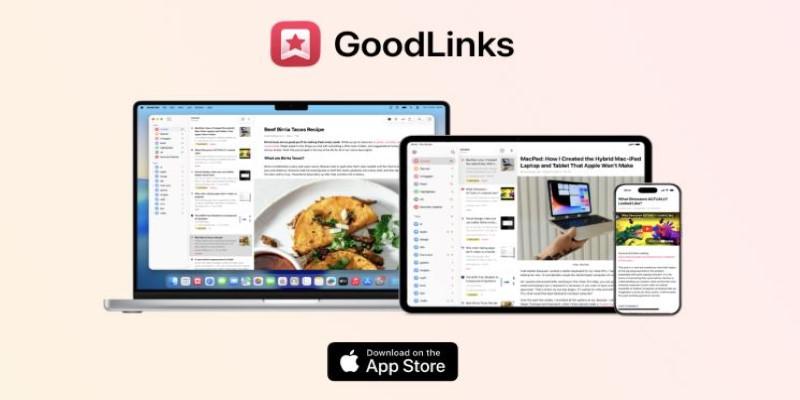
If you're the kind of person collecting articles, reference material, or web resources for later, GoodLinks is clean and fast. You save anything from Safari using the share sheet, and it stores a clean, readable version offline. This comes in handy on flights, in waiting rooms, or anywhere with a spotty signal. There are no ads, no clutter, and no sync delays. It doesn't try to recommend what you should read—it just keeps track of what you already found interesting.
Kindle
Even if you don’t consider yourself an eBook reader, the Kindle app can quietly become part of your daily routine. It’s not just for books you buy from Amazon; you can email documents and PDFs to your Kindle address, and they show up on your iPad as clean, adjustable pages. This works surprisingly well for reports or manuals that are awkward to scroll through in a regular PDF reader. The app syncs across devices, so switching between iPad and phone never feels jarring.
Microsoft Outlook
Apple Mail is fine until you need to manage multiple accounts, calendars, or flags. Outlook’s iPad version is surprisingly polished. It combines mail, calendar, and files in one place without forcing you into Microsoft's ecosystem. A common use case: managing a personal Gmail and a work Exchange account side-by-side, with different notification levels and swipe gestures. Some features, like shared calendars or grouped inboxes, work better here than on desktop clients. There’s no offline calendar editing, though, which catches people off guard.
Procreate Pocket (for drawing)
This is the slimmed-down sibling of the paid Procreate app, and while it has fewer advanced brushes and tools, it’s a great starting point for sketching or annotation. Artists love it for the pressure-sensitive pencil support, but even non-artists can use it for diagramming, rough wireframes, or highlighting images. One thing to watch: exporting layered files can be clunky if you move to a full desktop suite later. Still, for tapping around with a stylus, it feels intuitive and immediate.
VLC Media Player
iPads handle video well, but not every format plays nicely. VLC fills in the gaps. If you’ve got downloaded videos, lecture recordings, or audio files that didn’t come from Apple’s ecosystem, VLC plays them without a fuss. It supports subtitles, variable speed playback, and even streaming over local networks. A niche but real scenario: loading a foreign-language film with external subtitles for study, or checking surveillance camera footage in formats the default apps don’t recognize.
Snapseed
You’ll eventually want to edit a photo, and Snapseed remains one of the most powerful free editors around. What sets it apart is how deep you can go without the interface getting in your way. It handles raw files, selective edits, and batch-style filters, which helps if you're editing more than one shot in the same style. A common complaint is that the export options feel a little buried, but once you’re familiar with the tool layout, it’s fast and reliable.
LumaFusion (free trial)
This one’s slightly tricky—it’s a paid app with a free trial, but it’s useful even during that window. LumaFusion is what people turn to when they hit the limits of iMovie. You can layer audio tracks, sync footage manually, and adjust clips with frame-level precision. For someone putting together interview footage or social clips that need text overlays, it saves time over moving everything to a laptop. File management is the bottleneck—editing is smooth, but exporting to the wrong format can trip you up if you’re not careful.
Libby, by OverDrive
If your local library supports it, Libby opens up a steady stream of free books and audiobooks. Signing in takes a minute—library card required—but after that, it feels a lot like browsing a bookstore. You can adjust fonts, colors, and even set up a timer for bedtime reading. Audiobook playback works well, though skipping around long tracks can lag. Still, it’s a quiet lifesaver when you're trying to keep your entertainment free and legal.
Conclusion
Getting an iPad set up isn’t about filling it with dozens of apps right away. It’s about picking the ones that quietly do their jobs well. These ten don’t scream for attention, but over time, they start to feel like part of how the device works, not just something you installed. The App Store is full of noise, but with the right tools in place, the iPad becomes a lot more than a screen; it becomes something you rely on.